Thursday, October 28, 2010

CSS In Depth Part 2: Floats & Positions

Last week, in the first of our CSS In Depth post, we discussed the difference between paddings and margins, and what the box model is.

This week we’ll be discussing positions and floats as well as what the differences are and when it’s best to use them. Both floats and positions deal with the relationship of elements between each other. Without these, padding and margins would be ineffectual.

What Is Position?

Position rules are used to position the element in the document flow. The position rule can take four values: static, relative, absolute and fixed. The default value of every element is static, where each element comes after each one another in order.

Elements that are position can be moved around using the left, top, bottom and right rules and a pixel or percentage value.

If an element is not positioned inside of another positioned element, the left, top, bottom and right rules will calculate their values using the browser window. For example, if we have an element that’s 100 x 100px and positioned by itself, with a left of 20px, it will be exactly 20px to the left most side of the user’s window, no matter how big or small that is.

css1

However, if we position that element inside of another positioned element with a left of 20px, the 20px will be calculate from the left side of the element, not the browser window.

css2

Positioning seems to work well in IE with little bugs, however I generally use positioning as a last resort. It seems that floating elements allows for less bugs when dealing with repeated backgrounds, expanding content and layouts in general.

Relative Positioning

Relative position is close to floats in terms of how they work. They can be moved around using either the top, right, left, bottom rules or by margins like floats can. Relative positioning changes the element without influencing the layout of other elements.

Therefor, the element will technically remain in the document flow, but will be “relatively” position in it. Therefor if we have 3 elements and gave the middle element a position relative and a bottom of 40px, the element would move up 40px, but the element below it will not move at all, as if the middle element never moved.


div { width: 100px; height: 100px; border: 1px solid #000; background: #CCC;}
div.middle { position: relative; bottom: 40px; }


css3

Absolute Positioning

Absolute positioning removes the element from the document flow altogether. The other elements around it will move together and act as if the absolute positioned element never existed.

css4

This rule is generally best for using when an item breaks the general layout box.

Fixed Positioning

Fixed positioning is the same as absolute positioning, except it’s always positioned against the user’s browser window. Therefor, the element remains motionless as the user scrolls up or down in the browser. Unfortunately, fixed positioning doesn’t work at all in IE6 and below.

What Are Floats?

Floats are elements that are literally “floated”, so that they render side by side to each other. The float rule accepts three values: left, right and none. Floated elements can only be moved using margins, not by using the top, left, right or bottom rules.

Let’s say we have 2 boxes with a width of 50%. Normally, these boxes will appear one beneath the other, but if we give both boxes a float left, each box will render side by side.

css5

If there’s no height and width specified on the floated element, the element will automatically size itself to the content inside just like inline elements, even though a floated element is consider a block element. Also, non-floated elements will ignore floated ones in document flow, creating layout issues, so it’s important to either float all your elements in a container, or none of them.

Floating your elements left and right will solve a lot of weird browser issues. Unfortunately, modern browser deal with float rights differently than older browsers (including the IEs).

In modern browsers, you can either float right the element before or after the left float element, and it will render the same. For example, if out boxes had a width of 30% and the first one had a float left, and the second a float right, it would render correctly like:

css6

However, in older browsers, the floated right element has to come before the floated left element, otherwise it will render slightly below the left element. So, if we were to take the same example as above and check it out in an older version of Safari, or even in IE7, here’s an idea of how it would render:

css7

Which is better?

Like I said before, I prefer to float my elements and only use positions when breaking the layout. However, you’ll quickly come to figure out which works for your coding style better, so try experimenting with different floats and positions for all your layouts!

Thursday, July 22, 2010

HTML5 Family: CSS3 Ads Versus Flash Ads

We’ve been talking a lot about the HTML5 Family lately. Today, we thought we’d have some fun and dive directly into some CSS3 capabilities. In particular, we thought we’d see if you can really duplicate popular Flash ads in HTML5. Well it turns out that you don’t really need HTML5, all you really need are some digital assets and CSS3 animations—which today work in latest revisions of Chrome and Safari. Take a look at three popular Flash ads and compare them to our CSS3 recreations. It’s frankly a little uncanny.

In the rest of the post, we’ll show you how you can go about creating an ad using only CSS3 (and HTML). For simplicity, we will recreate the Flash ad from Hertz that we pulled off the web recently. The ad won’t look exactly the same (e.g. we don’t know the exact fonts and colors that were used) but we’ll be able to make it pretty close.

CSS3 ads vs. Flash AdsClick to view the demo and see if you can tell which ad was done in Flash and which was done in CSS3.

You will get most out of this post if you are familiar with the basic WebKit animation properties. For example, you should be able to understand this:

#objectIdToAnimate {
-webkit-animation-name: slideAnimation;
-webkit-animation-duration: 10s;
-webkit-animation-iteration-count: 1;
}

@-webkit-keyframes slideAnimation {
0% { -webkit-transform: translateX(130px); }
100% { -webkit-transform: translateX(0); }
}

The Ad

The Hertz ad consists of the following main components:

  1. Static Elements
  2. Animated Text
  3. Car
  4. Button

Since we are not creating an ad from scratch we will use three images taken from the flash ad (the car, the logos, and the triangle disclosure in the button). The rest will be recreated in HTML and CSS.

Set Up

The ad can be set up several ways. For this ad, we’ll use absolute positioning of all the ad elements. To do this while keeping the page flow, we set the outermost ad container to have a relative positioning. This enables us to use absolute positioning for the ad elements while still placing the ad on the page statically.

We also disable overflow, so elements (such as the car) will not show outside the boundary of the ad.

#adContainer {
position: relative;
overflow: hidden;
...
}

The ad elements are organized using hierarchical divs with absolute positioning. We assign unique ids to all divs that we want to apply CSS to. Using CSS, we position all elements where they are on the last frame (what you see after the ad has finished running). For anything that is not visible in the last frame, we set the opacity to zero or set the position outside the ad boundary box. This ensures that the ad will display okay in a browser (such as Firefox) that does not support -webkit animations.

HTML structure:


Pay for standard.

...


...


AAA Mem...


Organizing animations

There are several ways to organize CSS animations and the timeline. For this ad we’ll keep it simple by starting all animations on page load and keeping their durations the same (excluding the mouse over animations). This enables us to easily compare different animations when we write the code.

However, it is worth pointing out that this approach might not scale well when the number of animations gets high, since animations run simultaneously.

Text Animation

The text doesn’t move, so all we need to do is to animate the opacity of the text to do the fades.

Here is the first of three animations used (one for each piece of text).

@-webkit-keyframes text1 {
0% { opacity: 0; }
6% { opacity: 0; }
8% { opacity: 1; }
24% { opacity: 1; }
28% { opacity: 0; }
100% { opacity: 0; }
}

You might wonder why the opacity style is repeated even when the value doesn’t change. This is because we only want it to be animated between 6 – 8 % and between 24 – 28 %; otherwise we want it to be static.

Car Animation

To simplify the animation, we’ll split it into two separate animations by layering the car in an additional div. One animation to do the bouncing and one animation to slide the car.

CSS3 does not provide any direct way to animate a decaying wave, but we can get a satisfying result by using the default ease-in/out timing function and just define keyframes at the “top” and “bottom” of the bounces.

Here are the CSS keyframes used for the bounces:

@-webkit-keyframes bounceAnimation {
0% { -webkit-transform: scale(0.2); }
3% { -webkit-transform: scale(0.57); }
4.5% { -webkit-transform: scale(0.42); }
5.5% { -webkit-transform: scale(0.50); }
6% { -webkit-transform: scale(0.48); }

25% { -webkit-transform: scale(0.48); }
28% { -webkit-transform: scale(1.2); }
29.5% { -webkit-transform: scale(0.9); }
30.5% { -webkit-transform: scale(1.05); }
31.0% { -webkit-transform: scale(1); }

100% { -webkit-transform: scale(1); }
}

As it stands, this scales the car starting from the center of the image, so we need to add additional styles to the car in order to move the transform origin to the bottom of the car as well as placing the car relative to the bottom side of the ad rather than the top.

-webkit-transform-origin: center bottom;
bottom: 0;

The sliding of the car is simple:

@-webkit-keyframes slideAnimation {
0% { -webkit-transform: translateX(-130px); }
55% { -webkit-transform: translateX(-130px); }
66% { -webkit-transform: translateX(0); }
100% { -webkit-transform: translateX(0); }
}

Button Animation

We slide the button into the ad in a similar way to how we slide the car in.

Hovering over the button changes a few of its properties. To animate these changes we use the -webkit-transform property. This animates the color change.

To take it a step further, we also want to recreate the moving “shine” effect that the background of the button has. This can in fact also be done using just CSS. First we create a gradient background for the button, and then we move the background.

Just like this:

#button:hover {
background: -webkit-gradient(
linear,
left top,
right 50,
color-stop(0.45, #1D5365),
color-stop(0.5, #338DAD),
color-stop(0.55, #1D5365)
);
background-position: left top;

-webkit-background-size: 300px 22px;
-webkit-animation-name: backgroundShine;
-webkit-animation-duration: 0.3s;
-webkit-animation-iteration-count: 1;
-webkit-animation-timing-function: linear;
}

@-webkit-keyframes backgroundShine {
0% { background-position: right top; }
100% { background-position: left top; }
}

This working draft of the ad works in newer WebKit browsers (Safari 4, Chrome 5, Mobile Safari). It mostly works in Android although some animations do not behave correctly. It also degrades gracefully in Firefox and IE7+, displaying just the last frame of the animation. It could also degrade gracefully in IE6 by changing the images from PNG to GIF.

Tuesday, June 29, 2010

Stop Forking with CSS3

It seems like virtually every day there’s a fantastic new example of something amazing you can do with CSS3. Whether it’s as complex as full-blown animations or as (relatively) simple as RGBa colors, drop shadows, or rounded corners, I marvel at how far we’ve come since the lowly days of CSS1 or (shudder) the @font element.

The current state of CSS3 reminds me of a typical cinematic device: The scene opens with us, this happy-go-lucky family of developers out for a picnic by the lake on a beautiful summer afternoon. And as we laugh, play, and scamper about entertaining ourselves, the camera pans around, bringing us over to the lake where, beneath the surface, something stirs. Something ominous and foreboding.

Okay, perhaps that was a bit over-dramatic, but what I’m trying to say is that we’re ignoring the beasts within our code, hiding just out of view: forks.
What?

If you’ve been working on the web for more than a decade (I’m probably dating myself), you may remember that bleak time in web design history when JavaScript was a dark art. It earned that reputation because in order to do anything with even the teensiest bit of cross-browser consistency, you had to fork your code.

It was standard practice to have one set of JavaScript functions for Netscape and another set for Internet Explorer. Or, if you were a real masochist, you kept the code combined and created a fork inside the function:

function doSomething(){
if (document.getElementById)
{
// web standards FTW!
}
else if (document.all)
{
// do something in IE
}
else if (document.layers)
{
// do something in Netscape 4.x
}
}

In many cases, especially where animation or event handlers were concerned, the code got really gnarly, easily topping even the most atrocious spaghetti code in HTML. The thing about forking your code is that, when you least expect it, it will find a way to fork you right back.

Now, thanks to Web Standards Project browser-standards advocacy and diligent JavaScript library authors, the world of JavaScript is a much nicer place to work and play. Our code is now relatively fork-free, with fewer nooks and crannies in which bugs can hide. Unfortunately, in our rush to use some of the features available in CSS3, we’ve fallen off the wagon.

I think @border-radius was the proverbial “candy” that the forks used to lead us back into their clutches. We all wanted them; hell, we’d come up with myriad ways to fake rounded corners to realize our design dreams. So when Firefox and Safari dangled them in front of our drooling faces, asking only that we add two small forks to our code for the privilege, we jumped at the opportunity.

.this-is-awesome {
border-radius: 5px;
-moz-border-radius: 5px;
-webkit-border-radius: 5px;
}

They were only two small forks, after all, how bad could they be?

Well, once we had symmetrical rounded corners, we wanted asymmetrical rounded corners. After all, we need to be able to express ourselves and there comes a time when every man, woman, and child must stand up and set the radius of each corner independently! Unfortunately, Webkit doesn’t like the @border-radius shorthand, but that just means we need to be a little more verbose:

.this-is-slightly-less-awesome {
border-radius: 10px 5px;
-moz-border-radius: 10px 5px;
-webkit-border-top-left-radius: 10px;
-webkit-border-top-right-radius: 5px;
-webkit-border-bottom-right-radius: 10px;
-webkit-border-bottom-left-radius: 5px;
}

Oh, and we probably want to make sure Opera and Konquerer can get the rounded corners too (assuming Opera’s supporting them this week).

.this-is-absurd {
border-radius: 10px 5px;
-moz-border-radius: 10px 5px;
-webkit-border-top-left-radius: 10px;
-webkit-border-top-right-radius: 5px;
-webkit-border-bottom-right-radius: 10px;
-webkit-border-bottom-left-radius: 5px;
-o-border-radius: 10px 5px;
-khtml-border-top-left-radius: 10px;
-khtml-border-top-right-radius: 5px;
-khtml-border-bottom-right-radius: 10px;
-khtml-border-bottom-left-radius: 5px;
}

Now, are you seeing a problem here? Does it remind you of anything we used to do in our CSS?

.can-you-hear-me-now {
padding: 10px;
width: 200px;
w\idth: 180px;
height: 200px;
heigh\t: 180px;
}

Or perhaps you were more fond of something in a nice Tan.

.hooray-for-repetition {
padding: 10px;
width: 200px;
height: 200px;
}
* html .hooray-for-repetition {
width: 180px;
height: 180px;
}

Call it forking, call it hacking, call it what you will; we shouldn’t be doing it.
Another way

As you can probably tell, forks get me a little riled up. Rather than just getting angry about it, however, I decided to build a JavaScript library that supports clean living (or at least clean CSS): eCSStender. (Actually, the original impetus behind the library was a little different, but we’ll get to that in a bit.)

Boiled down to its essence, eCSStender (pronounced “extender”) is a JavaScript library (akin to jQuery or Prototype) specifically built for working with CSS. On its own, eCSStender doesn’t do anything but analyze your stylesheets. When powering “extensions,” however, eCSStender allows you to use properties such as @border-radius and selectors like @.seven:nth-child(even) without having to resort to forks or hacks.

If you’re developmentally inclined, you’ll be interested to know that eCSStender not only gives you introspection into the style rules contained in your CSS file(s) and provides a framework for testing a browser’s support (or lack thereof) for things like selectors or properties, it also provides a mechanism for you to patch browser support for CSS.

If, however, you’re more inclined toward the design side of things, you’ll be happy to know that using eCSStender and a handful of extensions allows you to write advanced CSS simply. It Just Works™.

.this-is-so-much-better {
border-radius: 5px;
}

Using eCSStender

Using eCSStender is pretty straightforward. You simply include the eCSStender library and whichever extensions you want to run against your CSS.

Or, you can pick and choose the pieces you want from the currently available extension bundles and create your own custom extension library.

So where do you get these extensions? Well, I have developed a number of extensions that offer CSS3 functionality and have bundled them such that they correspond to the various modules of CSS3, such as borders and backgrounds, selectors, and color. I am also aware of several other JavaScript wizards who are working on other pieces of the CSS3 puzzle, including a multi-column layout and more. A complete list of known extensions is being maintained on the eCSStender website and, if you’re interested, the website also has extensive documentation on how to roll your own.

Once you have included the JavaScript files, you simply go about using the properties as the spec defines them, and the extensions work their magic to translate what you wrote into something browsers understand. The beauty of this setup is that your stylesheets remain clean and fork-free; the extensions do all the dirty work for you.

Extensions are built to be smart, too. Using the eCSStender API, they can test to see whether or not the property or selector you want is supported in the current browser. If the property is supported, the extension doesn’t run, but if it isn’t supported, the extension is activated. So in the case of border-radius, Safari 5 implements the standard property and the border-radius extension is not run, but in Safari 4, which only understands -webkit-border-radius, the extension needs to run and makes the necessary translations. Once the majority of browsers accessing your site are savvy enough to grasp standards without the hand-holding, you simply delete the extension just as you would a conditionally-commented stylesheet for a version of IE you no longer need to support. Easy-peasy.

You’d probably like an example, right? Well, the eCSStender site is certainly one, but I’ve thrown together another one on the off chance you’d like to see a combination of CSS3 goodies in action. It makes use of:

* @border-radius,
* @box-shadow,
* RGBa backgrounds,
* @transform: rotate(), and
* @transition (assuming your browser supports it in some form).

Make sure you hover the box.
Yeah, but “extend”-er?

As I mentioned earlier, eCSStender was not originally designed to act as browser spackle; in fact, the original intent for the library, when I began writing it nearly three years ago, was to make it easy for each of us to get involved in crafting future versions of CSS. Through eCSStender, we can play with new ideas and see our concepts realized in an actual browser. It provides an easy way for us to experiment with syntax and see what works and what doesn’t without having to wait for native browser support.

If you’ll indulge me for a moment, I’ll give you an example. Say, for instance, I thought it might be interesting to imbue elements with physical characteristics and I wanted to use CSS to do it. I might create a new property (with a vendor-specific extension of “easy,” to indicate my company) called @-easy-physics-fill that would take one of several substances, such as “lead,” or “helium,” as its value. With eCSStender I can easily build an extension to look for that new property and apply the requisite physical properties. It’s a contrived example, but I think you get the point.

Used in this way, eCSStender empowers us to show the W3C what we want to see next in CSS. And it can help the CSS Working Group evaluate syntax and experiment with new ideas without having to wait for a browser vendor to implement them. This could streamline the process, as ideas that don’t work well in practical application can be jettisoned before the underlying codebase of any browser has been modified. And who knows, maybe the W3C would even consider an extension to be a valid implementation used as part of the standards-development process.
Pitching the forks

As a library, eCSStender has a few modest goals. First and foremost, it aims to offer robust tools for designers and developers to make working with CSS better.

On one hand, it seeks to equalize support for CSS across all browsers by offering a simple set of developer tools that makes crafting extensions easy and implementing them a breeze. On the other, it provides those same tools to designers and developers who are interested in conceiving and then building real implementations of the properties, selectors, and mechanisms they want to see in future versions of CSS.

Perhaps my dream of a world with equalized CSS support across browsers is pie-in-the-sky thinking, but I like pie. Even if it is best eaten with a fork.

from A List Apart

Thursday, June 17, 2010

8 Signs of a Great Client

Client work can be fun and rewarding, or it can be frustrating and discouraging. Freelancers deal with clients on an every day basis, so there are bound to be some good and bad experiences in the mix. Recognizing and appreciating a good client can sometimes lead to more of the same as you may be able to find ways to work with the client on an on-going basis, or you may be able to encourage referrals who will have some of the same characteristics.

From my experience, good clients have a number of common characteristics besides simply paying on time. In this article we’ll take a look at some signs of a good client, and why they are important.

1. They Have Realistic Expectations

All clients are unique and they all have different needs. Unfortunately, it’s very common for a client to have unrealistic expectations about how you can help to meet those needs. I’m sure we’ve all received emails or calls from potential clients that want a large, dynamic website with great design for a bargain basement price.

Pricing isn’t the only potential area for this situation. You may have a potential client that approaches you today and tells you that their site needs to be live in 2 weeks, when you know that their requirements will take far longer.

Dealing with unrealistic expectations and doing your best to communicate why they are unrealistic is often part of the job. When you are working with a client that has realistic expectations in terms of pricing, the time frame of the process, the amount of work that is involved, and the need for their participation in the process, that’s a good sign that they will be a pleasant client to work with.

2. They Know that a Good Website Costs Money

With such a huge number of freelancers and design studios in the marketplace, there is a very wide variety in terms of pricing. Typically, the cost of the service will generally correspond to the quality of work and the end result. Unfortunately, many clients don’t understand that they will usually get what they pay for, and if they want a quality website that meets their needs, they will have to spend some money.

Personally, I think it’s great that there are designers who are working at all kinds of different levels of pricing, and starting low is an effective way to gain some experience and learn while picking up some clients. However, clients often see a big gap in price difference and get hung up on that fact and fail to realize the potential variance in quality of work that they’ll receive.

When working with a client who understands that getting results with a website will require some investment can be a great thing for the designer/developer because the emphasis is then on creating the best website, not on getting it done quickly to keep the price down. This is the ideal situation for everyone involved.

3. They Can Give You a Description of What They Want from Their Website

Most designers like to have some creative freedom in their projects, rather than working on something that is completely dictated by the client. However, having a client that provides very little or no direction is not ideal either. The client knows their business much better than any designer would, and they should be able to have an idea of what they need to get from their website in order for it to be a valuable asset to the business. Likewise, they are more aware of their business’s identity and how it should be portrayed to visitors of the website.

While working with complete freedom may be nice for designers, it usually won’t produce results that are most effective for the business. The ideal situation is a client who knows specifically what they need from their website and is willing to work with a designer to get this accomplished. The best design process involves the client and the designer coming together to combine their expertise to create something special.

4. They Provide Constructive, Descriptive Feedback

Most clients don’t have a problem with providing feedback, but it may not always be the most helpful. I’m sure we’ve all had situations where a client says they don’t like the way you have something on the site and asks you to change it. But if they don’t give some descriptive details about what they don’t like or how they would rather have it, you’re taking a shot in the dark that they will like the changes you make. Nothing is more frustrating than changing something multiple times because you can’t get clarity on what they want.

When clients are able to give feedback to your ideas or to your work that is helpful and descriptive, your job will be much easier, and the client is also more likely to be pleased with the end result. Sometimes getting this feedback may be something that the designer can encourage by emphasizing the need to truly understand what the client wants in order to produce the best results.

5. They Respect Your Time and Their Own

While clients will not always understand what is specifically involved in the design and development process and the details of time consuming it can be, they should generally have a respect for your time. Designers, especially freelancers, understand that time management is critical to success, so we are forced to respect our time. Some clients, however, forget that you have other clients and responsibilities that may prevent you from being on call to them at all times.

During the design process there are any number of ways that designers can wind up wasting time because of poor communication. For example, in most cases if the client has an issue with part of the design that needs to be changed, the sooner the designer is made aware of the problem the less time it will waste. Of course, many clients won’t think of issues like this, so it is up to the designer to communicate the need for effective communication in order to prevent lost time. Hopefully the client will understand and take the appropriate measures to help ensure that time is not wasted.

Likewise, I prefer to work with clients who have a great deal of respect for their own time as well. A client who respects their time will be well-prepared, will be willing to pay for services that will save them time, and will be prompt and accurate with communication throughout the process.

6. They Take Their Website and Their Business Seriously

Occasionally you may be working with a client, and at some point in the process you may feel like they just don’t take their website seriously. Maybe they’re not getting involved in the process by helping you to get to know their business. Maybe they underestimate the potential impacts of the website on the business. Or maybe they just want a website to have one, but they don’t really care about the details.

Because the design and development process requires a time investment from the client and the designer, the ideal client will respect the need for a quality website and will be willing to do what is needed to make sure that it is done right.

7. They Take Time to Effectively Plan with You

One of the most difficult parts of the design process with some clients is the planning aspect. You’ll have clients who want to give you a one-paragraph description of their business, and they expect that you’ll be able to create the prefect site for them. Unfortunately, planning is probably the most important part of the design process, but some clients don’t want to dedicate any time to it. Without this, the project is highly unlikely to be very successful.

When you come across a client that appreciates the need to properly plan the website, this is a sign that the client will be good to work with. A client who is interested in planning understands that a designer cannot just magically create a site that works for their business without their input.

8. They are Careful to Choose the Right Person for the Job

The ideal client will realize that not every design is right for the job, and not every job is right for the designer. When the designer and the project are a good match, positive results will follow. When they’re a bad match, poor results will usually follow. However, some clients want to choose a designer very quickly for any number of reasons without really taking the time to find out if they are the best fit.

When I get an inquiry from a potential client that gives specific details about their project and what they need, I’m always more impressed than when I get a one sentence email that says “How much will you charge to design my website?” By giving me some details about what they are looking for, it says to me that they are concerned with finding the right person for the job.

Creating Fancy Checkmark Icons with Pure CSS3

I was recently working on a personal project where I wanted to implement some cool “checkmark” icons like you see at left to spice up my unordered lists. I could’ve done it quite easily with the list-style-image property, but I was trying to keep my images and http requests to a minimum, so I wanted to figure out another way to do it (plus, the challenge sounded kind of fun).

I had just seen Nicolas Gallagher’s awesome pure css social media icons, though, and I thought, “If he can do that, than I could certainly create a simple check icon with just css3″. I did figure it out with some experimenting and testing, and today I’m going to show you how to achieve the same effect.

The #1 Rule of CSS3 Coding

Before we start on any project, we have to remember the number one rule of CSS3 coding. Well, actually it’s two rules:

  • It must be cross-browser acceptable. I’m not talking identical, but a CSS3 technique is not very useful if it destroys the experience for users with older browsers. Use progressive enhancement.
  • No worthless markup! I know CSS3 is fun, and it’s not bad to experiment, but if you have to add a whole bunch of non-semantic junk markup just to save yourself from needing to use an image, you’ve defeated the point.

These are the two principles that I regard to be the unchangeable law for using CSS3. So anyways, enough of my rant – I just feel with all the buzz about CSS3 that it’s very important to use it in a mature and responsible way. Let’s move on with the tutorial :)

The Concept

Before we can start coding, we have to figure out what approach we’re going to take to create these icons. How is it going to be done?

Taking some inspiration from Nicolas Gallagher’s work, I think the best way would be to use the :before and :after pseudoclasses to generate the round circle and the checkmark shape. By using the unicode no-break-space (\00a0) as the content attribute, and the setting the display to block and styling it, we can create a huge variety of empty shapes. A checkmark icon lays well inside the boundaries of possiblity!

Also, in order to implement surefire progressive enhancement we’re going to use the :nth-of-type selector to make sure that only CSS3 capable browsers try to display the icons (older browsers will fall back on simple, default bullet-points). The :nth-of-type is a lifesaver and hugely useful for this, because the support for it lines up exactly with support for the border-radius and transform properties that will be necessary to render the icons.

The Code

OK, now that we’ve got the general concept figured out, we can start coding. We’ll start with the html for a basic, unordered list (copied from html-ipsum.com).

01.<ul>
02. <li>Morbi in sem quis dui placerat ornare. Pellentesque odio nisi, euismod in, pharetra a, ultricies in, diam. Sed arcu. Cras consequat.li>
03. <li>Phasellus ultrices nulla quis nibh. Quisque a lectus. Donec consectetuer ligula vulputate sem tristique cursus. Nam nulla quam, gravida non, commodo a, sodales sit amet, nisi.li>
04. <li>Pellentesque fermentum dolor.li>
05. <li>Lorem ipsum dolor sit amet, consectetuer adipiscing elit.li>
06. <li>Aliquam tincidunt mauris eu risus.li>
07. <li>Praesent dapibus, neque id cursus faucibus, tortor neque egestas augue, eu vulputate magna eros eu erat. Aliquam erat volutpat. Nam dui mi, tincidunt quis, accumsan porttitor, facilisis luctus, metus.li>
08. <li>Vestibulum auctor dapibus neque.li>
09.ul>

We’ll start with a very basic CSS style that will be applied to all browsers:

01.ul{
02. margin: 12px;
03. padding: 0;
04.}
05.ul li{
06. margin: 0 0 12px 0;
07. font-size: .9em;
08. line-height: 1em;
09.}

Now, onto the fun part. First, we’ll style the list items (for CSS3 browsers only) to have additional padding on the left (to make room for the icons), to be positioned relatively so that we can absolutely position the icons, and to hide the default bullets:

1.body:nth-of-type(1) ul li{
2. list-style-type:none;
3. padding: 0 0 0 45px;
4. position:relative;
5.}

Now, using the :before pseudoclass we’ll add a small black circle to the left of each list-item – the first half of the icon. We use before so that it will nest behind the checkmark, which will be generated using :after. Here’s the code:

01.body:nth-of-type(1) ul li:before{
02. /*fill it with a blank space*/
03. content:"\00a0";
04.
05. /*make it a block element*/
06. display: block;
07.
08. /*adding an 8px round border to a 0x0 element creates an 8px circle*/
09. border: solid 9px #000;
10. border-radius: 9px;
11. -moz-border-radius: 9px;
12. -webkit-border-radius: 9px;
13. height: 0;
14. width: 0;
15.
16. /*Now position it on the left of the list item, and center it vertically
17. (so that it will work with multiple line list-items)*/
18. position: absolute;
19. left: 7px;
20. top: 40%;
21. margin-top: -8px;
22.}

All that’s left is to create the checkmark and put it on top of the circle. We can do that very easily by giving the :after element a white border on the bottom and left, and then rotating it 45 degrees:

01.body:nth-of-type(1) ul li:after{
02. /*Add another block-level blank space*/
03. content:"\00a0";
04. display:block;
05.
06. /*Make it a small rectangle so the border will create an L-shape*/
07. width: 3px;
08. height: 6px;
09.
10. /*Add a white border on the bottom and left, creating that 'L' */
11. border: solid #fff;
12. border-width: 0 2px 2px 0;
13.
14. /*Position it on top of the circle*/
15. position:absolute;
16. left: 14px;
17. top: 40%;
18. margin-top: -4px;
19.
20. /*Rotate the L 45 degrees to turn it into a checkmark*/
21. -webkit-transform: rotate(45deg);
22. -moz-transform: rotate(45deg);
23. -o-transform: rotate(45deg);
24.}

We’re finsished! Here’s what the final product looks like:

All that remains now is to integrate it into your design (changing the border colors of the before/after elements if need be)!

Some Thoughts

So that’s it. In closing I have a few thoughts about this technique:

On the downside, relying on the :nth-of-type selector is a bit risky, since a browser that recognized that selector but didn’t support CSS rounded corners and rotation would end up rendering a distorted version of the icon. Some older versions of Opera have this problem. I think that’s a pretty small issue, though, since I’m not aware of any browsers (and certainly not any with more than negligible market share) that fit that description. Also, it could be argued that it’s not worth it just to avoid using one small checkmark image. I don’t think that’s necessarily true, but it is something to consider (for reference, the css code that created the icons is .57kb when compressed).

Overall, though, I think it’s a stylish, imageless touch that could fit well into a lot of design situations. It’s a creative use of CSS3, it doesn’t require extra markup, and it degrades with near perfect gracefulness, so overall I’m proud of the idea and think it’s pretty robust.


from WebITEtc.net

Friday, May 14, 2010

Create Beautiful CSS3 Typography

It has been suggested that beautiful and usable websites are created on a foundation of beautiful and usable typography. I’ve even read an article that suggests that the web is actually comprised of 95% typography. I’m not convinced that there is any empirical evidence for this figure, but I think that the point is a good one. And, that makes typography a pretty important element that you will want to look at very carefully.

Create Beautiful CSS3 Typography

Create Beautiful CSS3 Typography

Fortunately, CSS offers a variety of styling options that allow you a great deal of control over how your present your content to your viewers and users.

I’ve actually been meaning to prepare an article about typography for a while now, and I’ve finally gotten around to it in the form of this tutorial. Today we’re going to take a detailed look at how to create a beautiful and attractive typographic design using a variety of awesome CSS3 rules (many of which were also available in CSS2).

Starting with Mark-Up

Before we can get started with any kind of styling, we need to begin by creating some content, all nicely marked up as HTML. No need to waste a lot of time on this. Here is the basic markup that we will be using:


Web Typography
A Demo For Beautiful Typography on the Web


An Article by Matt Ward


It has been suggested that beautiful and usable websites are created on a foundation of beautiful and usable typography. That makes it a pretty important element that you will want to look at very carefully.


Fortunately, CSS offers a variety of styling options that allow you a great deal of control over how your present your content to your viewers and users. This demo - which is entirely driven by CSS - is built to demonstrate the step by step development of attractive typography, moving from basic HTML to fully styled content. You can use the buttons at the top of the page to view the content in various stages of styling, from completely unstyled to the completed design. Please feel free to have a bit of fun by working through the various stages.


Created: May 13, 2010

Basically, we have a heading (and sub-heading, as distinguished by a tag), followed by some meta information about the author, some paragraphs and a creation date. When we look at this content unstyled, it looks something like this:

Unstyled content

Unstyled content

Aside from the coloured background, this is basically just the way that the browser renders the content without any styles. It doesn’t look horrible, but, with a bit of love, we can make it a whole lot better.

Step 1

The first thing that we want to handle is the title itself. We’re going to change the colour, the typeface, the size and the tracking. Here’s the full style rule.

h1{
font-size: 2.5em;
font-family: Georgia;
letter-spacing: 0.1em;
color: rgb(142,11,0);
text-shadow: 1px 1px 1px rgba(255,255,255,0.6);
}

After applying these styles, we now have a nice bold heading, as shown in this screenshot:

Content after Step 1

Content after Step 1

Now, let’s take a look at some of what we did in the CSS. First, we increased the font size up to a full 2.5em, and mixed a nice dark red colour using the rgb() colour definition.

Next, we changed the typeface of the entire title to Georgia, which is a web-safe serif font that looks really nice. Of course, with wide support for @font-face these days, we don’t really need to restrict ourselves to web-safe fonts anymore, but Georiga still works really nicely, so I’ll just stick with it.

Personally, however, I find that the default tracking on the Georgia font is a little tight, so I open it up just a little, using the letter-spacing property. Because I am using the proportional em unit, we want to keep the number relatively low. Otherwise, the tracking will become overdone.

Lastly, we applied a subtle letterpress effect by using a thin, white drop shadow, which actually ends up looking more like a highlight.

Step 2

The title looks good now. However, we also want to break out the main title and the subtitle. This is why we marked up the subtitle into a tag, which will allow us to apply these different styles:

h1 span{
display: block;
margin-top: 0.5em;
font-family: Verdana;
font-size: 0.6em;
font-weight: normal;
letter-spacing: 0em;
text-shadow: none;
}

We create a logical break between the heading and the sub heading by converting the inline into a block level element, and established visual differentiation by lowering the text size, reducing the weight (removing the bold) and changing the typeface from Georgia to the sans serif Verdana. Notice, however, that we do nothing with the colour. Because of CSS inheritance, the original colour rules for the heading are maintained by the sub heading.

Content after Step 1

Content after Step 1

This works nicely to maintain a level of continuity within the title. Even though we want some differentiation between the title and the subtitle, we don’t want to separate them too much.

We also want to remove the letterpress effect by eliminating the drop shadow, and reset the tracking by reducing the letter spacing back down to 0.

Step 3

The next two steps involve working on the meta data line. For this one, I want to create a very strong differentiation from the title, without changing the typography completely. So, here is the CSS that we’re going to use:

.meta{
font-family: Georgia;
color: rgba(69,54,37,0.6);
font-size: 0.85em;
font-style: italic;
letter-spacing: 0.25em;
border-bottom: 1px solid rgba(69,54,37,0.2);
padding-bottom: 0.5em;
}

Keeping with the Georgia font helps to maintain some nice typographical unity within the design. Changing to either another serif or sans serif font would likely just cause typographical confusion, and changing all of the other properties helps to create enough of a difference between the meta information line and the title.

Content after Step 3

Content after Step 3

You may also notice that I use the rgba() colour definition rather that just the regular rgb(). This is definitely one of my absolute favourite parts of CSS3, since it adds a fourth dimension to the definition: an alpha channel that allows us to control opacity. When using rgba(), the fourth property (a number between 0 and 1) actually defines the level of transparency to be applied to that particular colour! It may not seem like much, but it’s an incredibly powerful tool. It’s not fully supported in IE yet, but it’s pretty easy to build in some graceful degradation.

Step 4

Next, we want to make one more quick change to the meta line. You may notice that I surrounded both the term “articles” and my name in tags in the markup. This is because I want to add in a very slight typographical variation on these bits of text. I can accomplish it with just a few lines of code:

.meta span{
text-transform: capitalize;
font-style: normal;
color: rgba(69,54,37,0.8);
}

The text-transform property is an awesome way of dealing with case in your designs. In this instance, I made everything uppercase, but sometimes it’s also useful to reduce everything to lowercase too.

Content after Step 4

Content after Step 4

I also removed the italic styling and reduced the overall transparency (making the text more opaque), in order to establish further contrast between these snippets of text and the rest of the line.

Step 5

Historically, creating columns in CSS has been something of an arduous process, involving a division of the content into different block level containers, along with floats or other positioning magic. It was certainly better than using tables, but still not necessarily ideal. Fortunately, with the new typographic elements introduced in CSS3, creating columns has become simpler than ever.

We’re going to use some of this new typographical goodness in our next step, by creating two columned paragraphs.

.body p{
font-family: Verdana;
-moz-column-count: 2;
-moz-column-gap: 1em;
-webkit-column-count: 2;
-webkit-column-gap: 1em;
column-count: 2;
column-gap: 1em;
line-height: 1.5em;
color: rgb(69,54,37);
}

The rule is a little long and just a tiny bit redundant, since we need to use Mozilla and Webkit specific properties to make sure that the styling is actually applied across as many browsers as possible. Eventually, I’m sure that they will both accept the standard property, but for now it’s best to keep all the declarations, just to make sure that it renders like this:

Content after Step 5

Content after Step 5

With these properties, you can set the number of columns that you want to use, and the space gap between the columns, which is great because it can allow you to keep a design tightly aligned to an underlying grid.

Also, while in this case I simply applied the column properties to the paragraph, you can also apply them to a higher, container-level element such as a

and have all the child paragraphs flow nicely into the proper structure.

The other thing we want to note about this styling rule is that we changed the main paragraph text to Verdana, matching it typographically to the sub title. Again, the rest of the properties are different enough to maintain a strong visual difference, but the use of the same font helps keep everything tied together.

Step 6

We are going to maintain this continuity in the sixth step too. We actually have two paragraphs in our markup, and based on the way we applied the columns, the order of the copy is actually somewhat disjointed. I did this on purpose, though, as I want to add a some different styling to the first paragraph.

.body p:first-child{
font-size: 1.25em;
font-family: Georgia;
font-style: italic;
-moz-column-count: 1;
-webkit-column-count: 1;
column-count: 1;
letter-spacing: 0.1em;
}
.body p:first-child:first-line{
font-weight: bold;
}

There are a couple of things that you should notice about this code. First, we are using the first-child pseudo-class to target any paragraph that is the first child of an element with the class of “body”. This is a handy little selector that allows you to build in some nice visual variation to the beginning of a block of text.

Content after Step 6

Content after Step 6

In this case, I want to add extra emphasis to this first paragraph, thereby giving more weight and significance to its content. I also want to stretch it across the two columns and change the font back to Georgia, again for emphasis.

Getting rid of the columns is actually pretty easy. All I have to do is replicate the column-count properties, and reduce it back down to 1.

Next, I can change the font family, and again I increase the letter spacing just a tad to help everything breath a bit better in Georgia. Then, for just an little bit of extra emphasis, I set the whole font style to italic.

You’ll also notice that this is the only step in this tutorial that actually includes two CSS rules. The second one is just a short little snippet that combines both the first-child pseudo-class and the first-line pseudo-class, allowing me to actually bold the first line of the first paragraph!

Step 7

Our typographic styling is pretty much complete. The only thing left to do now is add some styles to the date.

date{
font-family: Georgia;
color: rgba(69,54,37,0.6);
font-size: 0.75em;
font-style: italic;
letter-spacing: 0.25em;
border-top: 1px solid rgba(69,54,37,0.2);
display: block;
padding-top: 0.5em;
margin-top: 2em;
}

The rule here is pretty similar to the rule for the line of meta information. The only real difference is that I reduced the font size a little bit, to help establish a better visual hierarchy. I also flipped the border-based rule from the bottom to the top.

Content after Step 7

Content after Step 7

Because the tag creates an inline element by default, I changed the display mode to block. Finally I extended the top margin to improve the overall balance.

Typographical Summary

So there you have it: we’ve created what I think is an attractive typographical design using nothing by HTML and CSS. No images are used at all. To wrap this article up, I would just like to make a few quick notes about the typography itself.

  1. Despite only using two fonts in the entire design, I was able to create a wide range of styles, simply by altering the size, weight, colour and other properties of the type. This is a great way to generate typographical interest without having to rely on a lot of fonts. As I’ve already mentioned a couple times, it also helps to maintain unity within the design.
  2. Tracking (letter spacing) and leading (line spacing) are two elements of typography that are often overlooked when working with type on the web. However, while it may not have all the precession control of InDesign or Quark, CSS does provide some basic tools that allow use to make adjustments in these areas, resulting in more beautiful type.
  3. The art of typography is not just about picking fonts, colours and sizes. It’s not even just about leading, tracking and kerning. These are all just concepts used to describe and modify type. The real purpose of typography, however, is to help create and convey meaning through words. One of the ways to do this is through visual hierarchy – making typographical choices that reflect the relative importance of each and every element.
  4. Lastly, every element matters. Good typography takes nothing for granted. Instead, it makes a careful consideration of each and every element, no matter how insignificant it may seem. Ultimately, an element may be allowed to inherit a default value, but that should always be a conscious choice rather than an oversight.

Of course, there is always more that could be said about typography. Still, while I am no master of the craft, these are some of the things that I’ve learned through the process of my own work. I hope you find them, and this tutorial to be of some use!

from echo enduring blog

Box-Shadow back on the Menu (and other updates)

A recent editors draft of the CSS3 Background and Borders module (published on 5th may) indicates that the box-shadow property could be set to make a reappearance before the specification is released as a Proposed Recommendation.

The specification also features several other updates including the addition of a ‘content-box’ value to the background-clip property, changes to the background shorthand syntax for background-clip and background-origin, and the removal of a recommendation to use gradients for color transitions when border-radius produces a curve, further details below.

Last week also saw the release of an updated working draft of the CSS3 Template Layout module, read on for further details.

Box-Shadow

The box-shadow property, which allows for the creation of drop shadows on box elements, was removed from the Backgrounds and Borders specification prior to it entering the Candidate Recommendation phase of development last December, as the working group felt that the property needed more work, however the property makes a reappearance in a recent editors draft of the specification (published on 5th May).

The overall syntax and functionality remains the same as in previous versions, however the specification now offers further clarification with regard to the blur radius and spread radius functionality as follows.

Blur Radius

Previous specification:

“The third length is a blur radius. Negative values are not allowed. If it is 0, the shadow is sharp, otherwise the larger the value, the more the shadow is blurred. The exact algorithm is not specified.”

Editors draft (5th May):

“The blur radius is perpendicular to and centered on the shadow’s edge and defines a gradient color transition from the full shadow color at the radius endpoint inside the shadow to fully transparent at the endpoint outside it: if the blur radius is 0, the shadow’s edge is sharp, otherwise the larger the value, the more the shadow is blurred. The exact algorith for the blur transition is not specified.”

Spread Radius

Previous specification:

“Positive values cause the shadow to grow in all directions by the specified radius. Negative values cause the shadow to shrink. The shadow should not change shape when a spread radius is applied: sharp corners should remain sharp.”

Editors draft (5th May):

“Positive values cause the shadow shape to exapand in all directions by the specified radius. Negative values cause the shadow shape to contract. For corners with a zero border-radius, the corner remains sharp. Otherwise the spread radius outsets the edge of the shadow by the amount of the spread radius in the direction perpendicular to the shadow’s edge. (Note that for inner shadows, expanding the shadow means shrinking the shadow’s perimeter.) The UA may approximate the spread shape by outsetting (insetting, for inner shadows) the shadow’s straight edges by the spread radius and increasing (decreasing, for inner shadows) and flooring at zero the corner radii by the same amount. If both a blur radius and a spread radius are defined, the blur is applied to the resulting shape after the spread is applied.”

Interactions

The updated specification also offers further definition as to how the box-shadow property interacts with other backgrounds and borders properties, particularly in relation to the border-image property, with the updated specification stating clearly that the border-image property has no effect on the shape of box shadows.

The specification also further clarifies how the box-shadow property interacts with tables and pseudo-elements:

“The ‘box-shadow’ property applies to the ‘::first-letter’ pseudo-element, but not the ‘::first-line’ pseudo-element. Outer shadows have no effect on internal table elements in the collapsing border model. If a shadow is defined for single border edge in the collapsing border model that has multiple border thicknesses (e.g. an outer shadow on a table where one row has thicker borders than the others, or an inner shadow on a rowspanning table cell that adjoins cells with different border thicknesses), the exact position and rendering of its shadows are undefined.”

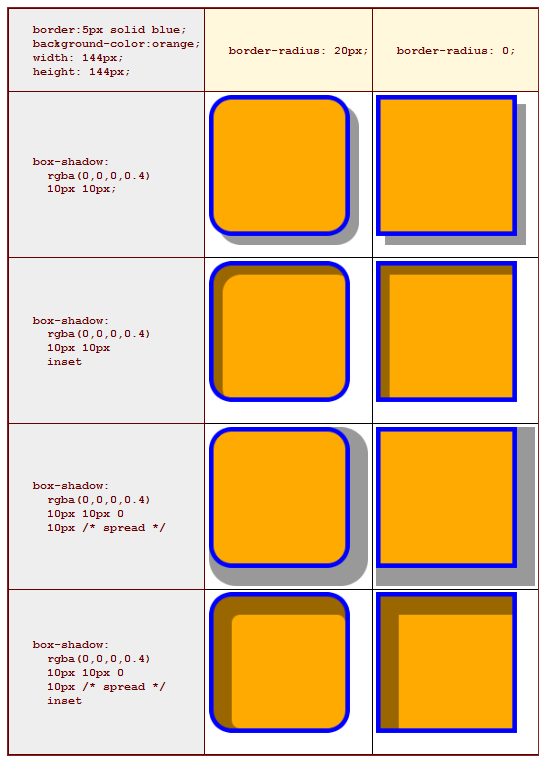
Box-Shadow Examples

The draft also includes a number of examples (see the diagram below) as to how the property should behave in certain circumstances:

Box-Shadow Examples, W3C

Box-Shadow Examples, W3C

Additional Updates to CSS3 Backgrounds and Borders

In addition to the reinclusion of the box-shadow property, the specification introduces a ‘content-box’ value to the background-clip property allowing the background to be clipped to the content box (previously border box and padding box were the only clipping options), a change to the background shorthand syntax in relation to background-clip and background-origin, the removal of the recommendation to use gradients for color transitions when border-radius produces a curve, and various other clarifications.

You can view the editors draft here.

New Working Draft of CSS3 Template Layout Module Released

Last week also saw the release of an updated working draft specification of the CSS3 Template Layout module. The updated release contains a small number of minor updates, but according to the working group minutes was published more to “show it is still active.” The updated draft can be viewed here and I’ll provide further details when I’ve had a chance to take a closer look it.

frmo CSS3.info

Sexy Interactions with CSS Transitions

While Webkit-based browsers have had CSS Transitions since Safari 3.1.2, other browsers are only just now coming out with nightly builds supporting this exciting new part of the CSS3 specification.

With all browsers except for IE being slated to have Transitions support in the coming months, more and more web designers are turning to this powerful technique as a means to enhance their website’s user experience.

There is only one problem: many of us have never created animations in JavaScript, Flash or some other environment before, and are therefore not as well-versed in the unwritten rules of the animation world.

Before We Go On

A key distinction must be made clear: CSS Transitions govern the specific purpose of transitioning a state change, say from A to B. They can apply to one or more elements at a time, but it’s important to remember that they don’t animate anything unless there is a change.

CSS Animations, on the other hand, are for the purpose of creating dynamic, keyframe-based animations that can run on their own, regardless of any user input or state changes.

This article focuses solely on CSS Transitions, though the lessons learned often apply to CSS Animations as well.

You Might Need to Switch Browser

To see the examples in this article in action, you’ll have to use a browser that supports CSS Transitions: Safari as of 3.1.2, Chrome, Firefox 3.7 alpha or Opera 10.5x.

When and Where Should I use Transitions?

Just because a tool is available to you, doesn’t mean you have to use it. This is as true for transitions and animations as it is for anything else, if not more so. Three simple questions you can ask yourself will help you decide:

  • Does this transition add any value?
  • Does this transition enhance the user experience?
  • Does this transition avoid distracting the user from the task they are trying to accomplish?

If your answer is “No” to any of these questions, you should re-evaluate your transition; you might be better off without it.

How a transition adds value is often difficult to determine; a lot of animation on the Web is superfluous, serving no real purpose. But animations can serve a purpose, like guiding the user’s eyes to something that changed on the page.

Another purpose of a transition can be to make something more fun and engaging, encouraging its use. This may sound superfluous to some, but there is real value in making a website or interface more fun.

Making transitions that enhance the user experience can be tricky, too. Oftentimes, this comes down to the specifics of the transition: how long it takes, what aspects (read: CSS properties) it transitions, and whether they make the guided interaction clearer or more confusing.

Lastly, if the transition or animation distracts the user, it can actually harm the interface overall. For instance, if something animates when the user is trying to read something, their reading experience will greatly suffer. Let’s look at some examples to illustrate all this.

Examples

The first example shows a background color transition taking place when the user hovers over the blockquote element.

(Note: the CSS rules listed in each example only display the most relevant properties, and for the sake of brevity the vendor-prefixed versions are omitted after Example 1. Look at the examples.css source file for the full CSS of each example)

Example 1: A Background Color Transition

#example-1 .example-area blockquote {
background: #eee;


transition: all .3s linear;
-o-transition: all .3s linear;
-moz-transition: all .3s linear;
-webkit-transition: all .3s linear;
}
#example-1 .example-area blockquote:hover {
background: #aaa;
}

Lorem ipsum dolor sit amet, consectetur adipisicing elit, sed do eiusmod tempor incididunt ut labore et dolore magna aliqua.

Ut enim ad minim veniam, quis nostrud exercitation ullamco laboris nisi ut aliquip ex ea commodo consequat.

Excepteur sint occaecat cupidatat non proident, sunt in culpa qui officia deserunt mollit anim id est laborum.

Now, you may wonder why anyone would do this when it clearly serves no purpose other than displaying the author’s ability to use CSS Transitions—worse, it triggers on an element that has no inherent interactivity associated to it!

And yet, examples like these can be found all over the web, be it a meaningless background color change, a drop shadow or something else. Furthermore, if there is no interactivity to a specific element, there almost certainly shouldn’t be any transition applied to it unless triggered by an interactive element.

Because the human eye is trained (via millions of years of evolution) to spot movement faster than it observes details in a static view, any kind of movement that occurs in or even around a body of text will immediately distract the reader from the reading process.

It is therefore crucial that you think deeply about any transitions or even animations you apply to your web page, and ensure that they both serve a purpose and don’t distract your visitors from what they’re doing.

Duration

The next examples look at a very important aspect of transitions: duration. As the human eye sees movement at different speeds depending on light, color and information, it’s impossible to give any specific guidance on what makes for a snappy, comfortable animation.

However, it is possible to get a better feel for it by looking at some examples and determining which ones “feel” more intuitive and fluid to you, especially after repeated use.

We’ll start with four simple boxes that animate once you hover over them (or select them via keyboard focus):

Example 2: Animation Speeds

#example-2 .item {
background: #ccc;
height: 30px;

}
.example-area .item {
transition: all 1s linear;

}
.example-area .item-2 {
transition-duration: .75s;

}
.example-area .item-3 {
transition-duration: .5s;

}
.example-area .item-4 {
transition-duration: .25s;

}
#example-2 .item:hover,
#example-2 .item:focus {
height: 200px;
}

If you start hovering from left to right and then back again, one by one, you’ll probably get pretty impatient by the time you reach the 1-second box on the left again. This seems contradictory to our minds; after all, it’s only a second, right? Except that a second is a pretty long time when it comes to smooth transitions or snappy animations.

Example 2 used relatively big objects to illustrate the speed of transitions; let’s see what these exact same transition durations feel like when used in a less obvious manner, such as hyperlinks in a body of text:

Example 3: Animation Speeds of Links

#example-3 .item,
#example-3 .item {
background: #fffef7;

}
#example-3 .item:hover,
#example-3 .item:focus {
background: rgb(235, 111, 0);
color: #fff;
}

This is an example paragraph with four links in it. Each link has a background color transition applied to it on hover or focus, but the duration for each link is different. The first link will take a full second to animate to completion, which takes a seemingly long time as you can see. The second link takes 750 milliseconds, or .75 seconds. This third link takes half a second, and lastly, the fourth link takes only .25 seconds, or 250 milliseconds, to animate completely.

Suddenly, these very same transition speeds feel a lot slower—despite being the exact same. The reason for that is that the difference between the two states is smaller in example 3 for each element, than it is per element in example 2.

There is thus a correlation between the perceived difference between state A and B, and the time taken by the transition.

When adding transitions to your interactive elements, it’s a good idea to try them out repeatedly for a while to determine whether they start to feel “slow”. Even a half-second transition can quickly become a tedious wait time for a user, especially since they’re probably pretty used to instantaneous state changes—which, it should be noted, are not necessarily better, because they don’t guide the user to see what just changed.

If you’re doing color transitions in some way or another, you may observe strange hues from appearing in the middle of your transition. That happens when you have no start or end color specified. Example 4 has four boxes to display this:

Example 4: Color Transitions

#example-4 .item {
height: 75px;
width: 75px;
transition: background-color .5s linear;

}
#example-4 .item-1 { background: transparent; }
#example-4 .item-2 { background: #fffef7; }
#example-4 .item-3 { background: #fffef7; }
#example-4 .item-4 { background: rgba(255, 254, 247, 0); }

#example-4 .item:hover,
#example-4 .item:focus {
background-color: rgb(235, 111, 0);
background-color: rgba(235, 111, 0, 1);
}

The first box has no predetermined background color, and therefore has a weird gray showing up in the transition. The second box does and so its background color fades more naturally.

However, as you can see in the third box’s case, having a solid background color may not work as you want it to with textured backgrounds, which is why the fourth box uses an rgba value—that is, a color with an alpha channel specified—to make it appear natural and support textured backgrounds.

Conclusion

By now you should have a better understanding of when and where to use CSS Transitions, and what it takes to optimize them so that they serve to enhance the overall user experience.

There are countless of possible combinations for transitions on the web, and each unique one will require a different process to fine-tune it. That said, there is a lot of potential to this new addition to CSS, so go out there and wield it to make something beautiful.

from Think Vitamin